


BEBONCOOL Cell Phone Gamepad Joystick for iPhone Android Control Bluetooth Controller Trigger with Hall Effect Stick Mobile Game
- Regular price
-
$42.46 - Regular price
-
$42.46 - Sale price
-
$42.46
Couldn't load pickup availability
Shipping information
Use collapsible tabs for more detailed information that will help customers make a purchasing decision.
Ex: Shipping and return policies, size guides, and other common questions.
Returns information
Use collapsible tabs for more detailed information that will help customers make a purchasing decision.
Ex: Shipping and return policies, size guides, and other common questions.


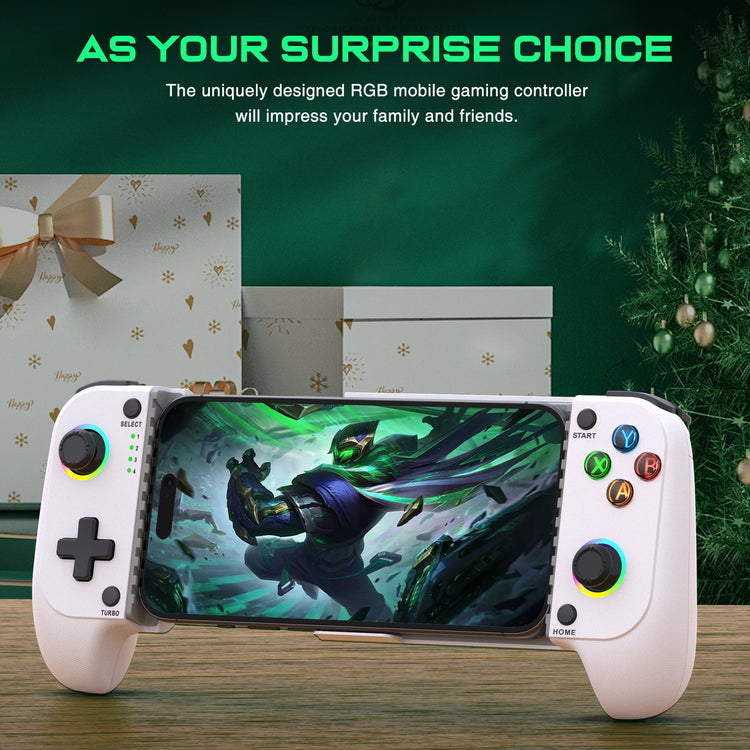

Product Details
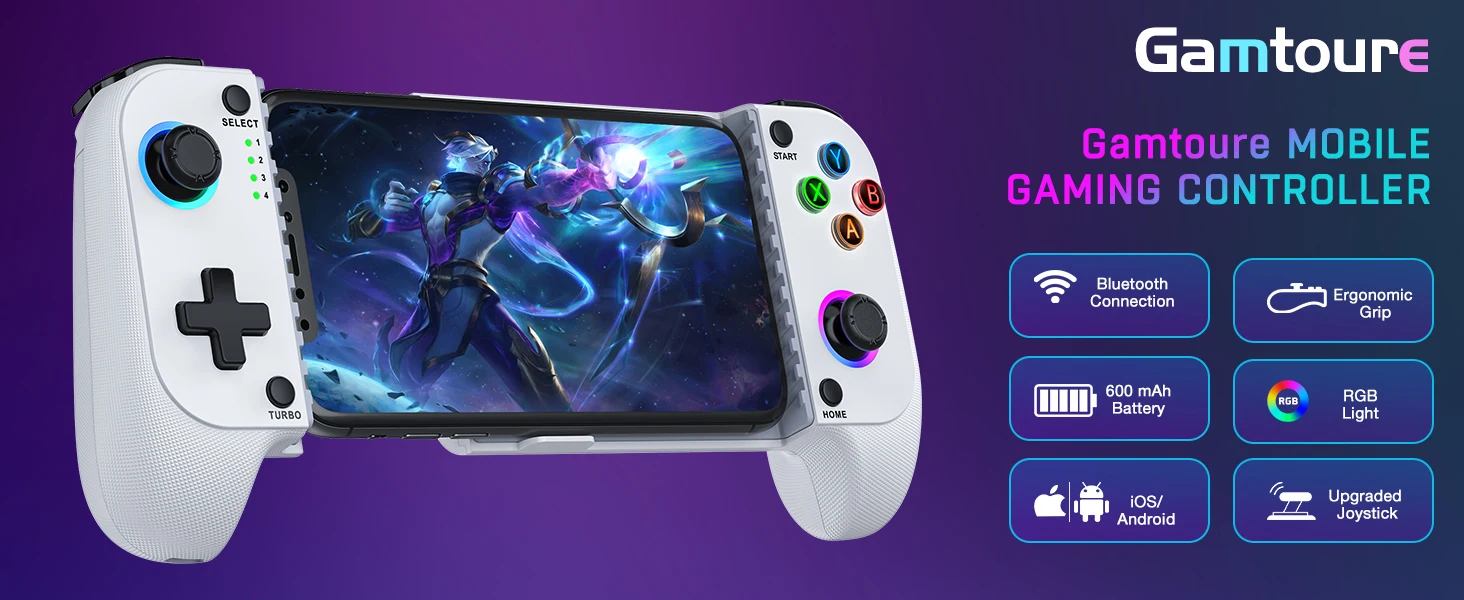
SPECIFICATIONS
BEBONCOOL Model: MC101
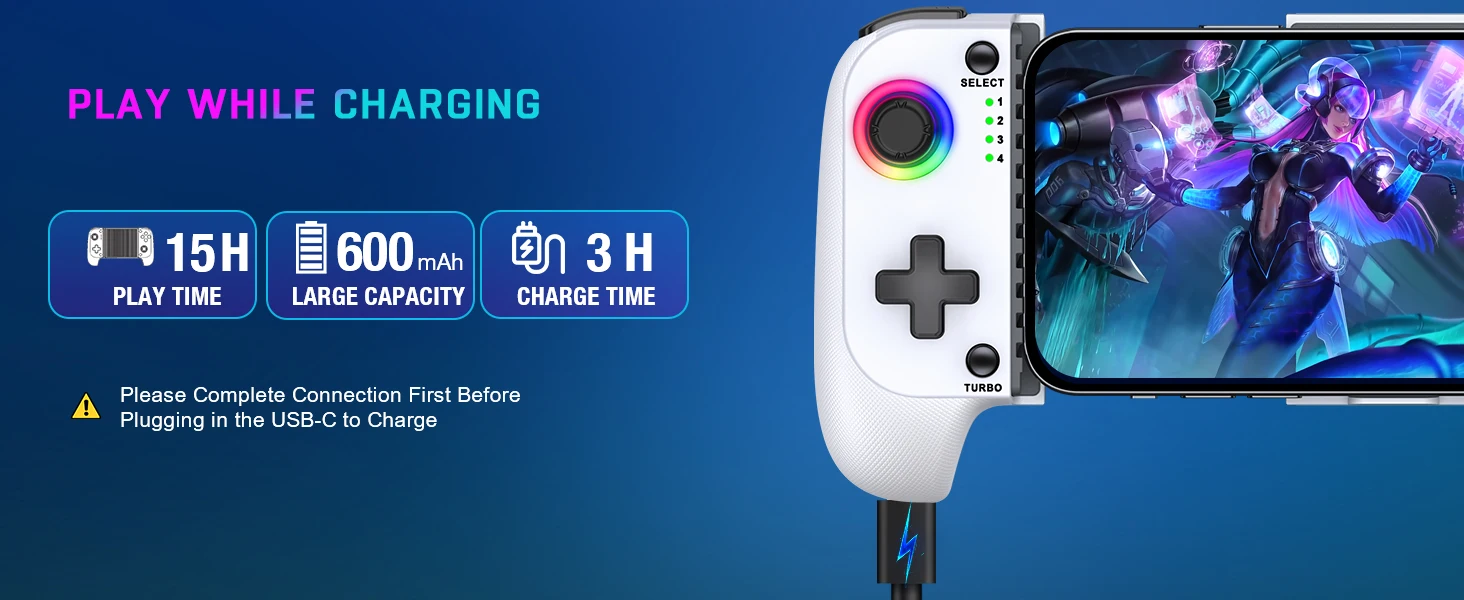
Battery Included: Yes
Brand Name: beboncool
Certification: CE,FCC,RoHS
Compatible Brand/Model: Mobile Device
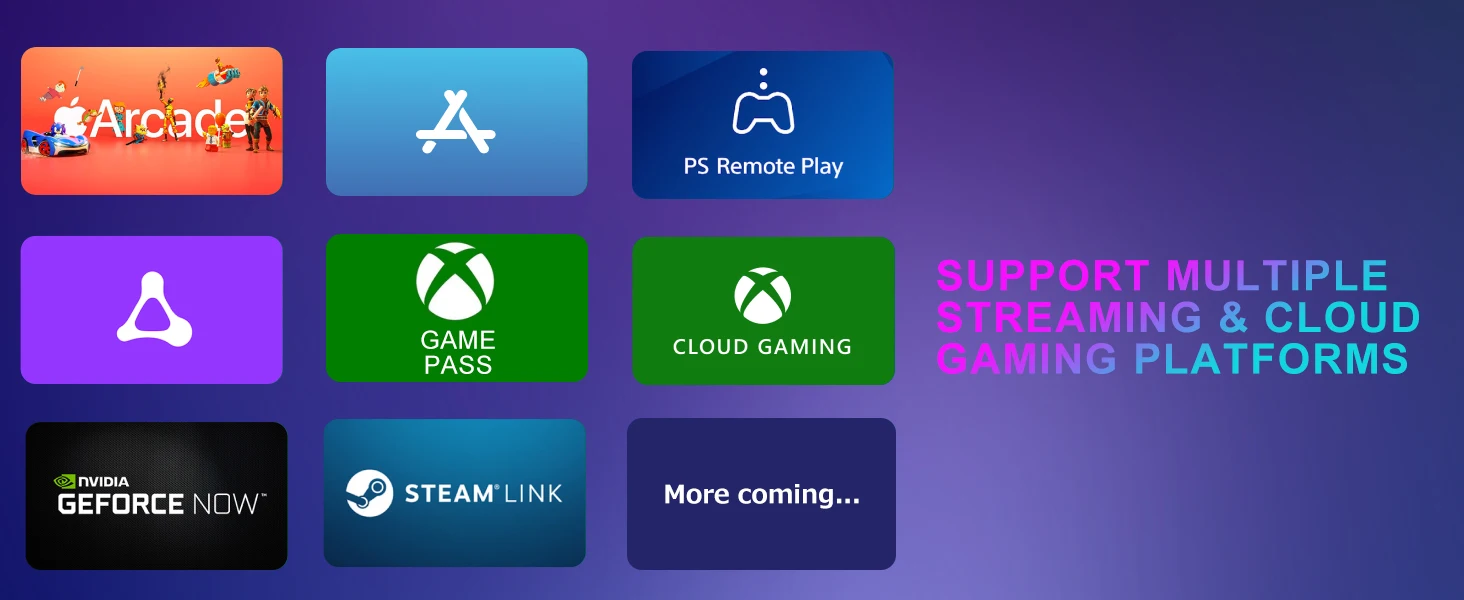
Compatible Platform: Android,iOS
Hall Effect: Yes
Hign-concerned Chemical: None
Interface Type: Bluetooth
Model: MC101
Origin: Mainland China
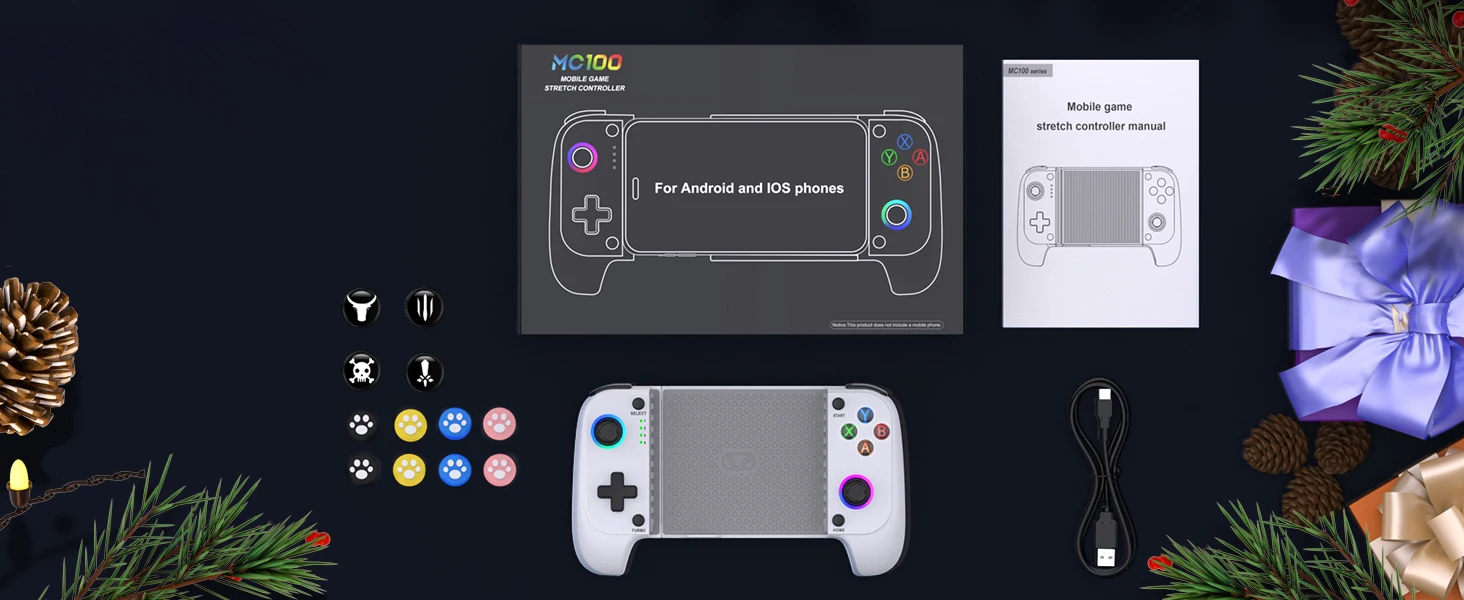
Package: Yes
Trigger Button Type: Non-Linear
Type: Gamepads
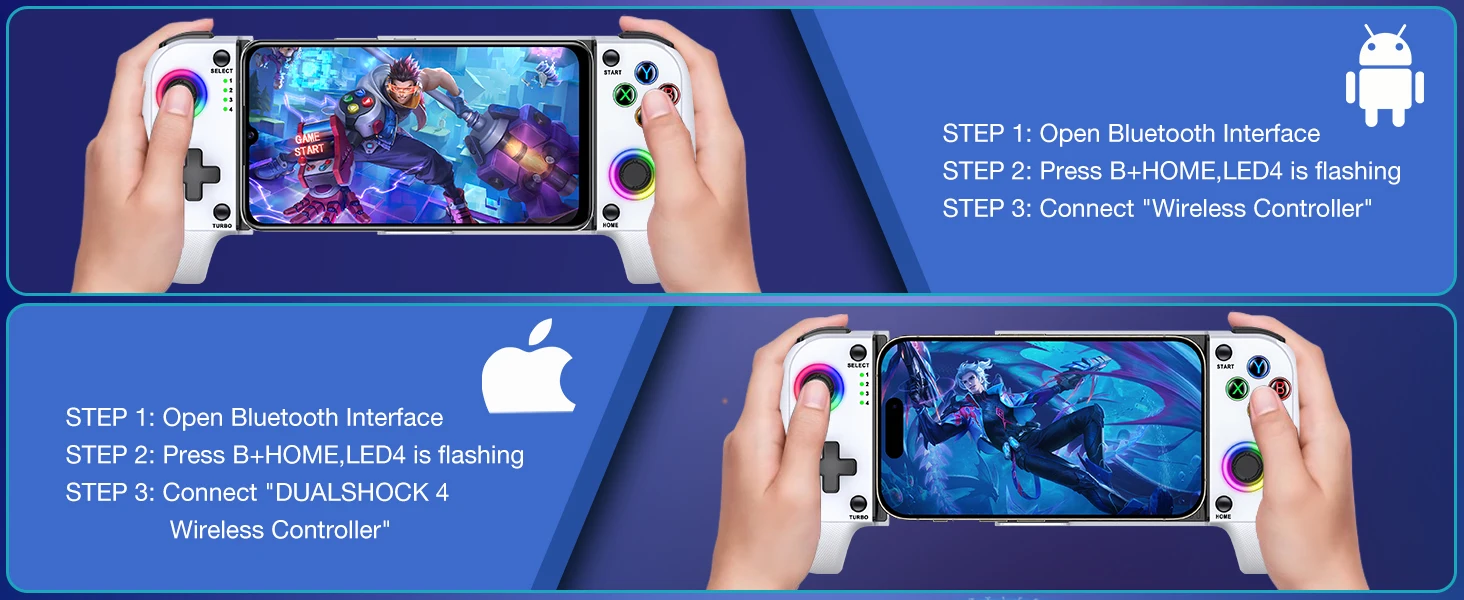
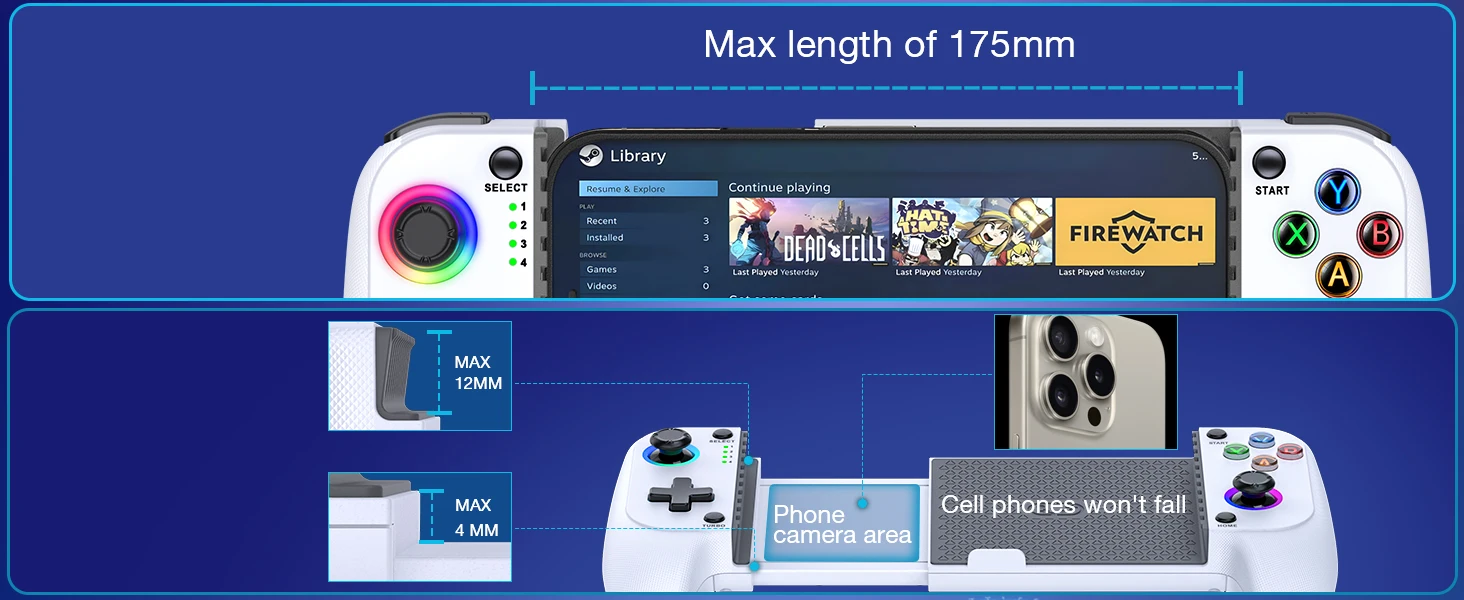
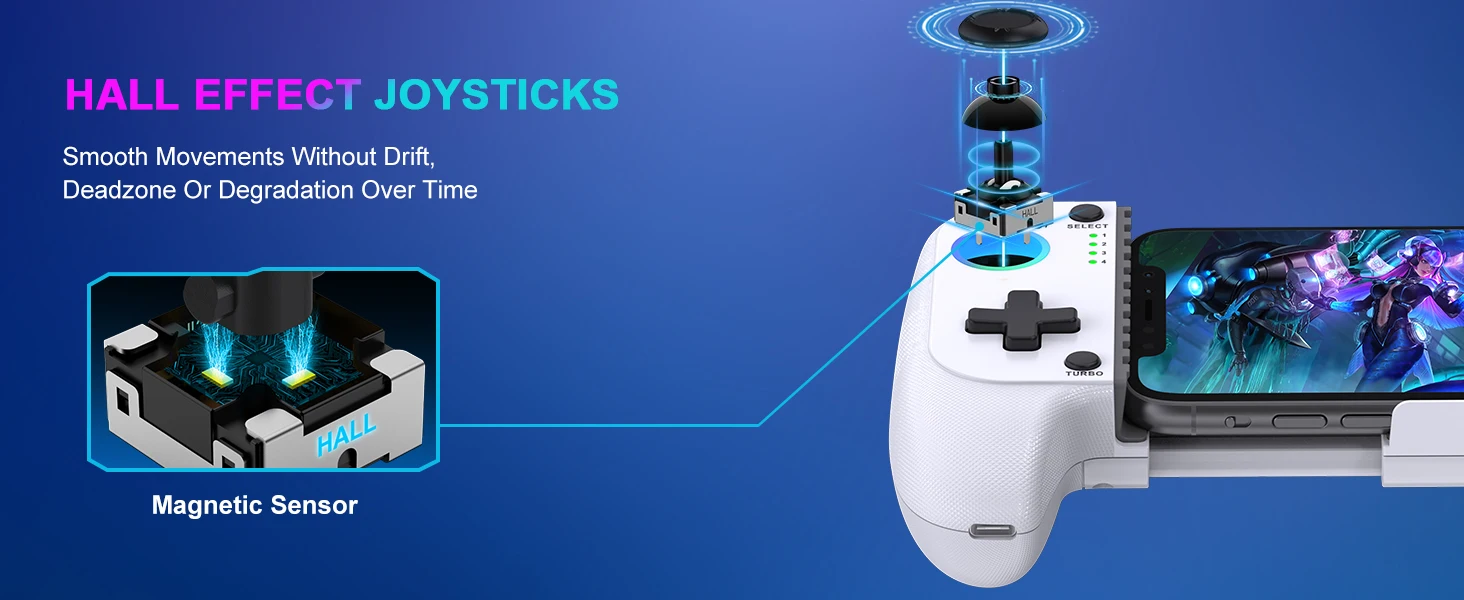
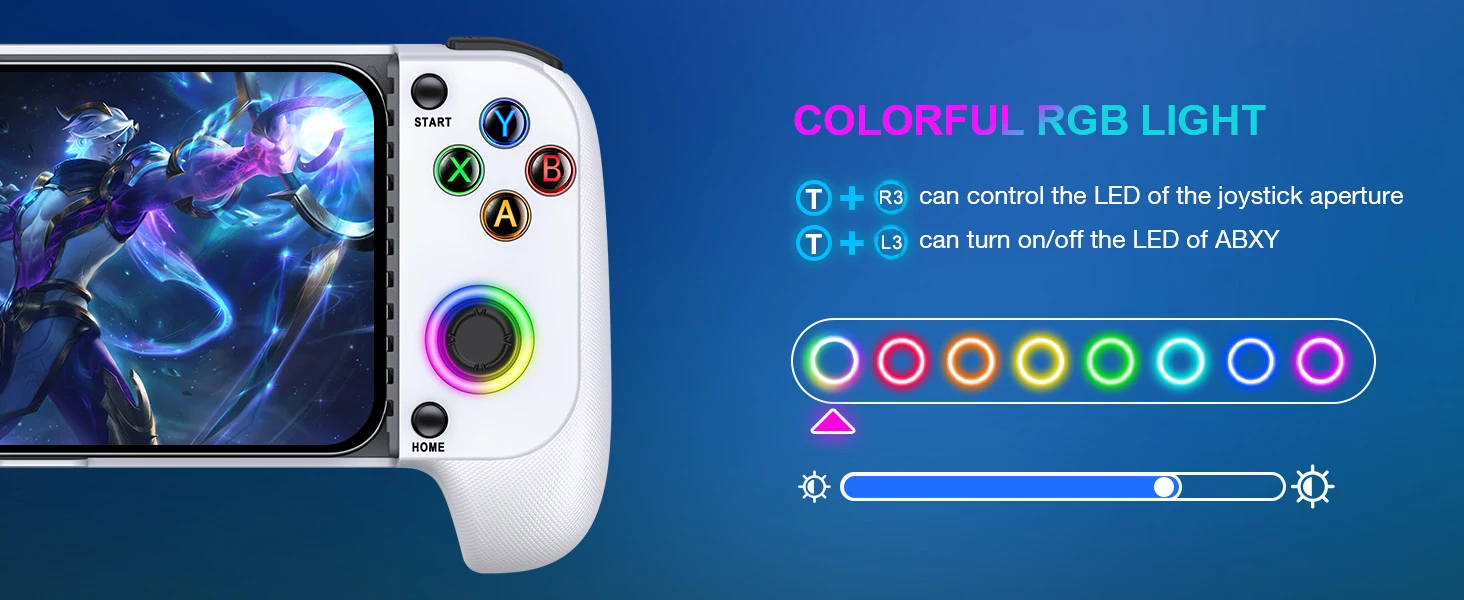
Solutions about usual question
Q: Can't find the corresponding Bluetooth name?
A: It is possible that you only holded on the [HOME] key and did not holded on the [B] key. When you connect it for the first time, please hold down the 【 B 】 key with your finger, do not release it, then press the 【 HOME 】 key with your other finger, wait until LED4 starts flashing quickly, release the button, and then search for the corresponding Bluetooth name in your phone's Bluetooth settings.
Q: Is the Bluetooth name not "DUALSHOCK 4 Wireless Controller" or "Wireless Controller"?
A: If the Bluetooth name you search for is "Pro Controller" or "GC Pad", it is possible that you did not press the [B]+[HOME] keys. Please turn off the controller and then reconnect according to the initial connection method provided in the manual.
Q: Previously connected normally, now unable to connect?
A: There may be several situations:
First : If you connect to phone A and then to phone B, then you want to reconnect the controller to phone A, You should reconnect it to phone A using the initial connection method.
second : After connecting to your phone for the first time, the Bluetooth name of the controller has been recorded on your phone. To connect again, simply hold on the [HOME] button when your phone's Bluetooth is turned on. If you press [B]+[HOME], you need to click on the corresponding controller Bluetooth name in the Bluetooth settings.
Third : Press the [HOME] button, LED4 is always on, but it is not actually connected to the phone. You can reset the controller by poking the reset button inside the small circular hole on the upper right side of the back of the controller with a fine needle, and then delete the memorized Bluetooth name on the phone and reconnect to the phone using the initial connection method.
Q: Unable to control in the game, invalid buttons?
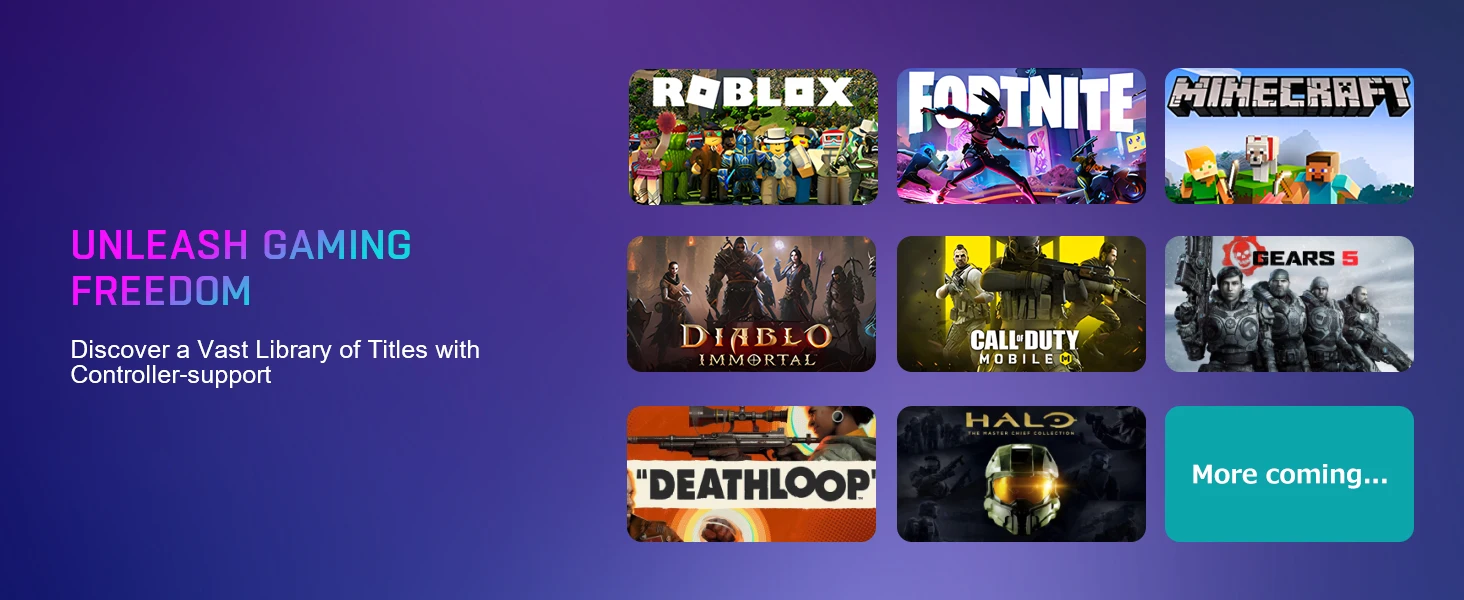
A: Firstly, please confirm if the game you are playing is what the native controller supported . If the game itself does not support controller , then this controller will not work. Then check the connection status of the controller to see if LED4 is always on. If another signal light is on, it indicates that the connection mode is not corresponding, and the buttons cannot be correctly matched in the game. Please follow the initial connection instructions to reconnect the controller. In addition, some games require a certain level of progress to unlock certain button functions, or do not require certain buttons throughout the entire process. Please be aware.
Tip: If any functional issues occur, you can try resetting the controller by pressing the reset button inside the small circular hole on the upper right side of the back of the controller to see if the problem can be resolved.
1. Collapsible tab
Share information about your brand with your customers. Describe a product, make announcements, or welcome customers to your store.
2. Collapsible tab
Share information about your brand with your customers. Describe a product, make announcements, or welcome customers to your store.
3. Collapsible tab
Share information about your brand with your customers. Describe a product, make announcements, or welcome customers to your store.
Tab collage
1. Image heading
2. Image heading
3. Image heading
4. Image heading
Pair text with an image to focus on your chosen product, collection, or blog post. Add details on availability, style, or even provide a review.
Pair text with an image to focus on your chosen product, collection, or blog post. Add details on availability, style, or even provide a review.
Pair text with an image to focus on your chosen product, collection, or blog post. Add details on availability, style, or even provide a review.
Pair text with an image to focus on your chosen product, collection, or blog post. Add details on availability, style, or even provide a review.
Testimonials
Author's nameAdd customer reviews and testimonials to showcase your store’s happy customers.
Author's nameAdd customer reviews and testimonials to showcase your store’s happy customers.
Author's nameAdd customer reviews and testimonials to showcase your store’s happy customers.
Author's nameAdd customer reviews and testimonials to showcase your store’s happy customers.
Author's nameAdd customer reviews and testimonials to showcase your store’s happy customers.